Send your Google Maps leads to Google Sheets
Connect your Google account once. Then send the leads you select to a spreadsheet, or let a task add its new leads every time a run finishes. Leads already in the sheet are skipped.
Included in every paid plan · from $9 a month
What it does
- A new spreadsheet ("LeadWebia leads – date", or named after the task) or one LeadWebia created before.
- Row 1 is the header and column A is Google's place_id: that's how leads already in the sheet are skipped.
- Fields we add later become new columns at the end; your own columns and their order stay as they are.
- Up to 10,000 leads per send. Sends of more than 100 leads run in the background; the message at the end links to the sheet.
- Auto-sync per task: each run of the task adds the leads it found.
Set it up
Connect Google Sheets
In LeadWebia, open Integrations and click "Connect Google Sheets". Sign in with Google and allow LeadWebia to create spreadsheets in your Drive. The card then shows the account you connected.
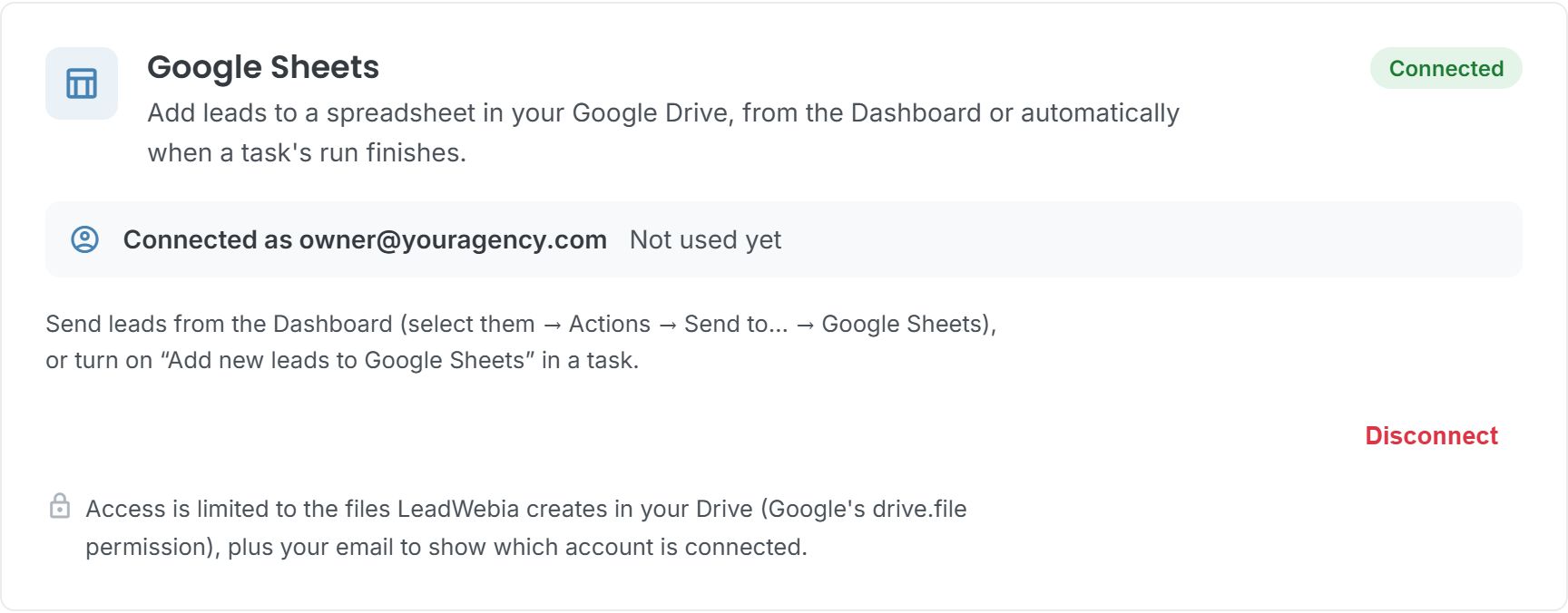
Send leads from the Dashboard
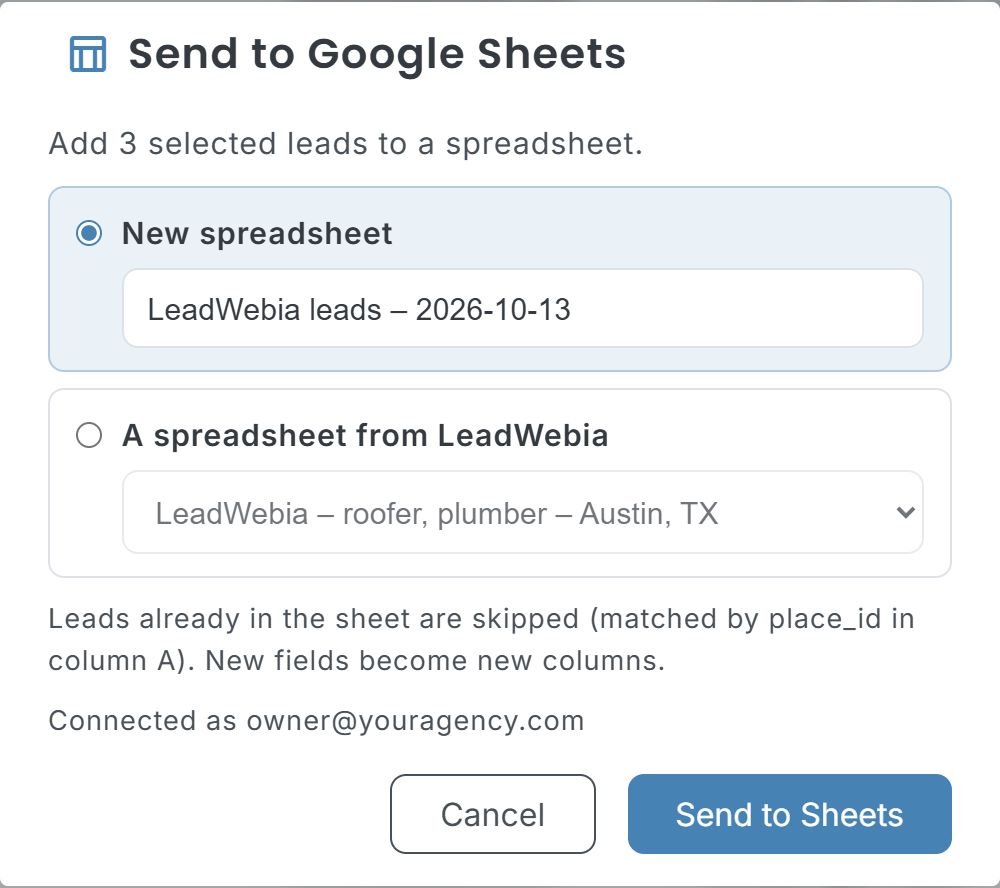
Select leads, open Actions → Send to… → Google Sheets, choose a new spreadsheet (you can rename it) or one LeadWebia created, and click "Send to Sheets". The confirmation has an "Open sheet" link.
Or let a task add its new leads
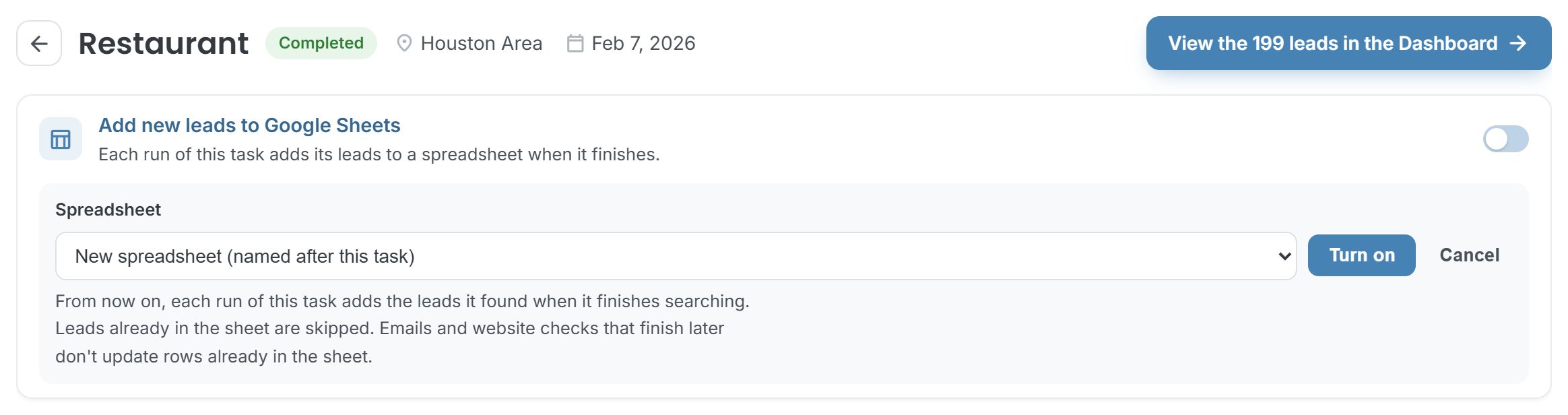
On a task's page, turn on "Add new leads to Google Sheets" and choose the spreadsheet: a new one named after the task, or one LeadWebia created. Every run of that task adds its leads once their emails and website checks are done.
The columns
One row per lead, one column per field. Lists (emails, ads) are joined with commas.
| Data | Fields | What it is |
|---|---|---|
| Business | name, category | The name and the Google Maps category, e.g. "Roofing contractor". |
| Address | vicinity, city, state, postal_code | The full address, plus city, state and ZIP code in their own columns for US addresses. |
| Phone | phone, phone_e164 | As listed on Maps, and in E.164 format (+15125550134) for dialers and CRMs. |
| Website | website | The website on the listing; empty when the business has none. |
| Reputation | rating, user_ratings_total | Google rating and number of reviews. |
| Emails | emails | Found on the business's website and public pages. Maps listings don't include emails. |
| Social profiles | facebook, instagram, linkedin, twitter, tiktok, youtube | Links to the profiles the business publishes. |
| PageSpeed (mobile) | performance, accessibility, best_practices, seo | Google PageSpeed scores, 0–100, for businesses with their own site. |
| Tech | cms, ads | The CMS (WordPress, Wix, Squarespace…) and the ad pixels found on the site. |
| Lead score | score, score_label | 0–100 and hot / warm / cold, from no website, slow or broken site, no SSL, ads and an unclaimed profile. |
| Links and pipeline | google_maps_url, place_id, niche, status, saved_at | The Maps listing, Google's place ID, the niche it was found for, your status and when you saved it. |
Good to know
- LeadWebia asks Google for the drive.file permission: it only sees the spreadsheets it creates, never the rest of your Drive. That's also why it can't write to a spreadsheet you made yourself.
- Rows are added, never updated: a lead already in the sheet keeps its row as it was.
- A task adds the leads of each run once their emails and website checks are done, usually a few minutes after the search.
- Values are written as plain text and numbers, never as formulas.
- Available on paid plans. Disconnecting revokes LeadWebia's access at Google; your spreadsheets stay in your Drive.
Frequently asked
Can LeadWebia read my other spreadsheets?
No. It uses Google's drive.file permission, which only covers the files LeadWebia creates. Your other files and spreadsheets stay out of reach.
What happens if I send the same leads twice?
LeadWebia reads column A (place_id) first and only adds leads that aren't there. The result tells you how many were added and how many were already in the sheet.
Can I add my own columns?
Yes. Add columns for notes or follow-ups anywhere after LeadWebia's; new rows are written under LeadWebia's column names and your columns stay as they are.
Can I send leads to a spreadsheet I created myself?
No: with the drive.file permission, LeadWebia can only open spreadsheets it created. Create one from LeadWebia ("New spreadsheet") and use it from then on.
How many leads can I send at once?
Up to 10,000 per send, written in batches of 500 rows. Sends of more than 100 leads run in the background.
Which plans include Google Sheets?
Every paid plan: Starter ($9 a month), Professional ($19) and Enterprise ($49).
Other integrations
- Instantly — Add local business leads with emails to your Instantly campaigns: company, website, phone and custom variables (city, category, rating, lead score). Leads without an email are skipped.
- GoHighLevel — Use LeadWebia as a GoHighLevel prospecting tool: find local businesses on Google Maps, qualify them and send them to HighLevel through an Inbound Webhook workflow, Zapier or Make.
- Webhooks — Send local business leads from LeadWebia to Zapier (Catch Hook), Make (Custom webhook), n8n or your own server as signed JSON. Payload, headers, retries and HMAC verification in Node and Python.
- Google Maps scraper — every field LeadWebia finds, filters and pricing.
Find leads worth a row in your sheet
Start with 50 free leads; Google Sheets is included in every paid plan.